
Burning Bridges AI Video Generator
Create Burning Bridges AI video with your main character and an optional supporting cast.
The short answer
To create Burning Bridges AI video, upload one main character photo, optionally add up to five supporting photos and one environment photo, and choose a 5-, 10- or 15-second performance. Review resolution and the credit quote before creating your Burning Bridges video. Burning Bridges AI generator provides a warm indoor scene, character-led movement and a horizontal frame.
What is a Burning Bridges AI video?
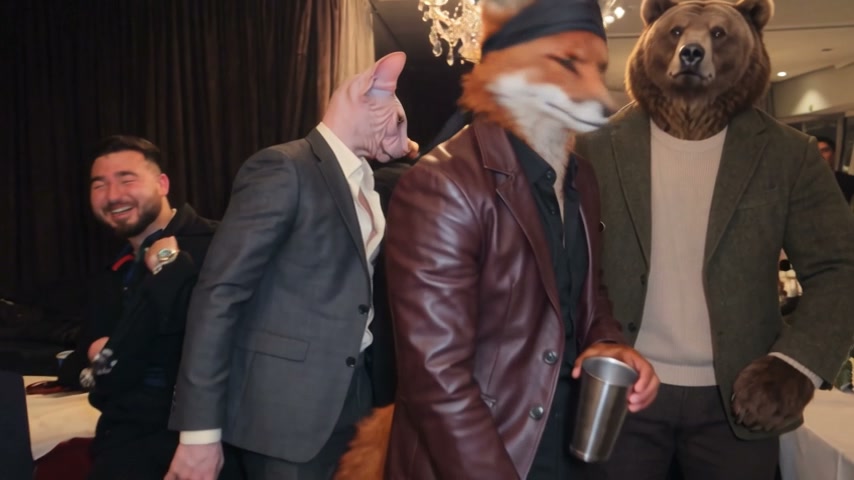
A Burning Bridges AI video places your chosen main character in a lively indoor performance. The appeal comes from expressive gestures, a warm room, close interactions and a camera that feels present in the crowd. You can create Burning Bridges video with one portrait, or build a small supporting cast with additional photos. Decide which character should attract attention before choosing your images. A clear main character photo gives Burning Bridges AI generator a more useful starting point than a busy group picture.
Burning Bridges AI preset is a short performance scene rather than a story with several locations. The main character remains the focus while supporting characters contribute to the atmosphere. Burning Bridges AI video may change details during turns, movement or occlusion. Watch the actual sample to understand the broad scene, then judge your own Burning Bridges video on recognizable characters, coherent movement and an enjoyable performance. The sample shows one completed generation; it does not promise the same result for every photo.
Which main character photo should you choose?
Choose one main character photo with a visible face, good lighting and enough upper-body detail to establish clothing. People, original fictional characters and suitable pet portraits can provide creative inputs. For Burning Bridges AI video, avoid sunglasses that conceal most facial detail, large stickers, heavy blur or several overlapping faces. Your main character photo does not need to show a dance pose. Choose an image whose appearance you want in Burning Bridges video and whose use you are permitted to authorize.
A main character photo with visible shoulders and clothing is often easier to interpret than an extreme face crop. Keep the subject separate from other people and avoid screenshots with interface elements. When reviewing Burning Bridges AI video, look at the main character during turns as well as the opening frame. Clothing, proportions and expressions can vary during motion. A clearer main character photo reduces ambiguity, but it cannot guarantee exact details throughout Burning Bridges video. Keep an alternative photo available if the first composition is difficult to interpret.
How do supporting photos shape Burning Bridges video?
Supporting photos are optional: Burning Bridges AI generator accepts one main character photo and up to five supporting photos. Each supporting photo should feature one distinct character. Arrange supporting photos in the order you want to introduce the cast, with the earliest supporting photo taking priority in the supporting-character direction. The cast can combine people and original characters. Avoid submitting the same photo several times, which makes it harder to keep Burning Bridges AI video cast visually distinct.
Use the reorder controls to move supporting photos before creating your Burning Bridges video. Remove any supporting photo that does not belong in the intended cast. The main character photo always stays first. Supporting photos describe the additional cast; they do not give you frame-by-frame control over blocking or guarantee that all five supporting characters receive equal screen time. Burning Bridges AI video with one or two clear supporting photos may be easier to assess than a crowded cast. Check appearances, interactions and clothing before sharing Burning Bridges video.
An environment photo is optional and has its own upload area, separate from your main character photo and supporting photos. Use an image of the room or setting you want to suggest. The environment photo supplies setting details rather than another performer. Leave it empty to use the default warm indoor performance atmosphere. Keep the environment photo visually clear, with useful lighting, surfaces and decoration.
Which Burning Bridges AI video settings should you use?
Burning Bridges AI generator offers 5, 10 and 15 seconds in a fixed 16:9 frame. The default Burning Bridges video is 5 seconds at 480p with sound. Choose 720p or 1080p when you want a larger output, and review the current credit quote for that combination. A shorter Burning Bridges AI video is a practical starting point for seeing how your main character photo and supporting photos work together. A longer Burning Bridges video allows more of the performance to unfold; it is not simply a repeat of the shortest clip.
The horizontal format leaves room for supporting characters and the busy indoor scene. When sharing Burning Bridges AI video on a vertical feed, preview the framing before cropping, because a narrow crop may remove supporting characters. Resolution affects output dimensions and the displayed credit quote; it does not guarantee a flawless face or hand. Select Burning Bridges video settings that suit the intended use, rather than treating the largest setting as a guarantee of better character consistency. Keep the original download if you later make a social-media edit.
What sound is included in a Burning Bridges AI video?
Burning Bridges AI video generation includes sound. The example previews play muted so they do not interrupt browsing. Muted preview playback and the downloaded video are separate: the completed Burning Bridges video includes its sound. Review duration, resolution and the cast before clicking Create video. Listen to the full clip before sharing, especially around prominent gestures and vocal moments.
If you add music to your Burning Bridges video afterward, use music you have permission to publish in the intended setting. Sound, movement and facial detail can vary between generations. Supporting photos and an optional environment photo do not add a separate soundtrack-generation step to the Burning Bridges AI generator. Check your completed Burning Bridges video before editing its soundtrack or sharing it on social media.
How should you review your completed Burning Bridges video?
Check the main character first: face, clothing and body proportions should be coherent enough for your purpose. Then check each visible supporting character during turns, overlaps and re-entry into the frame. Burning Bridges AI video can look convincing in the opening still while showing mistakes during motion. Play the complete Burning Bridges video, pause at interactions and listen to the sound with sound. Decide whether the overall performance works for your intended post, rather than checking only a cover frame.
Your Burning Bridges AI video continues processing after you leave the page. Return to History to view and download a completed Burning Bridges video. Keep your selected photos and settings organized so you know which cast produced each result. The displayed credit quote is the charge to review before generation; a new video is a new paid task. Technical failures return the reserved video credits according to the existing task rules. Visual preferences or an imperfect supporting character do not automatically trigger another Burning Bridges AI video or an automatic refund.
How to plan your video
- Open Burning Bridges AI generator and upload your main character photo. Use the separate Environment upload if you want setting guidance. Add only the supporting photos you want in Burning Bridges video; keep each character separate and arrange their order.
- Choose 5, 10 or 15 seconds, a supported resolution. Review Burning Bridges AI video quote, then sign in and select Create video.
- Return to History to preview your Burning Bridges video. Check the main character, supporting photos, movement and sound, then download the completed Burning Bridges AI video.
Use photos and music you have permission to use. Photo clarity and output quality vary.
Frequently asked questions
Can I create a Burning Bridges AI video with one photo?
Yes. One main character photo is required; supporting photos are optional. Burning Bridges video does not require a separate photo for every person in the scene.
How many supporting photos can I use?
Burning Bridges AI generator accepts up to five supporting photos in addition to the main character photo. Remove or reorder supporting photos before creating Burning Bridges video.
Is Burning Bridges AI generator free?
Creating Burning Bridges AI video uses credits. Review the current quote for duration and resolution before submitting. Previewing the scene and choosing settings do not create a paid video.
Can I add an environment photo to the Burning Bridges video?
Yes. The optional Environment upload is separate from your main character photo and supporting photos. Leave it empty for the default indoor scene. Burning Bridges AI video generation includes sound.
Related scenes
Choose the cast for your Burning Bridges video
Start with your main character photo, then add supporting photos for a personal Burning Bridges AI video.