
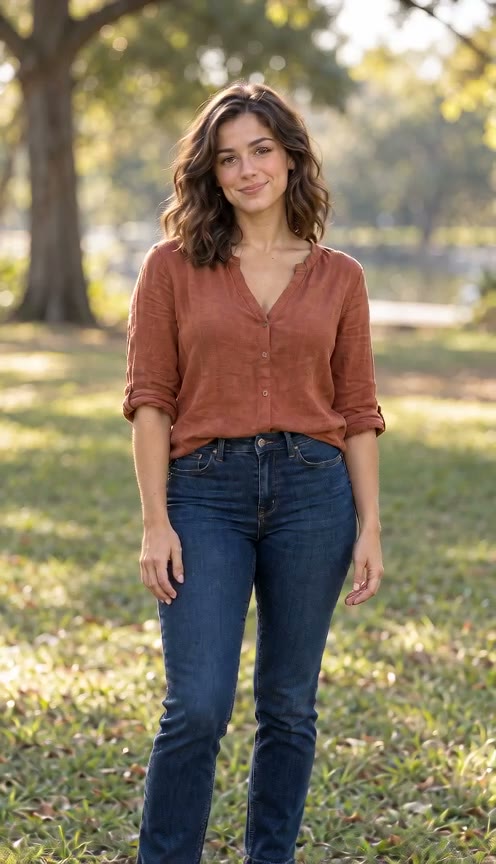
AI Photo Animation: Bring a Portrait to Life
Create AI photo animation with restrained portrait motion: a blink, a breath or a small smile.
The short answer
AI photo animation turns a still image into a short video. To animate a portrait photo, start with small changes such as blinking or breathing. A subtle portrait animation can bring photos to life while keeping the composition familiar. Choose Bring to Life, upload one portrait or a pair photo, and generate gentle motion with a steady camera.
Animate a portrait photo with small movements
To animate a portrait photo, describe a natural blink, a slight head turn or a small smile. A subtle portrait animation keeps attention on the person rather than dramatic camera movement. A portrait animation can drift from the source, so review the face and background before sharing.
Animate a portrait photo with a restrained idea that suits the original image. A photo animation prompt for a formal portrait might request breathing and one blink; a relaxed portrait might add a slight smile. A subtle portrait animation does not need a new pose or a different scene.
A photo animation prompt is provided by the preset rather than an extra text field. It asks for gentle breathing, blinking and a small expression change. To bring photos to life in a formal portrait, keep the original pose visible and choose a short duration. When Audio is on, review the native sound as well as the picture before using the clip in a slideshow.
Prepare photos for portrait motion
Before you animate a portrait photo, choose an image with clear facial detail. AI photo animation introduces motion; it does not repair a damaged photo automatically. If restoration is needed, do that separately so the animated portrait begins with a clean source.
This AI photo animation helps you animate a portrait photo using the portrait motion preset. Use one portrait or a pair photo with two clear subjects. The photo animation prompt keeps the subjects distinct and requests small movements in the original composition.
Match portrait motion to the original photograph
To animate a portrait photo, choose movement that makes sense for the visible pose. A seated person looking toward the camera may suit breathing and a blink; a smiling portrait may suit a slight change in expression. Asking for a large turn can require a video tool to invent details that are not visible in the photograph. A subtle portrait animation keeps the planned movement close to the source, which also makes changes in facial detail easier to notice when reviewing a result.
Give portrait motion a specific purpose, such as a family slideshow, a portrait introduction or a quiet visual keepsake. AI photo animation does not establish how a person really moved or sounded. For an old photograph, avoid interpreting a generated smile or gesture as a historical record. If you share an animated portrait, describe it as an animation when the distinction matters. Choose an image you have permission to use and consider whether the person or family would welcome that presentation.
Review eyes, texture and background detail
Review a subtle portrait animation against the source image, not just against your memory of the person. Watch the eyes during blinking, the mouth during a smile and the hairline during a head movement. Teeth, jewelry and background edges may change even when the overall motion looks gentle. Pause at several points and compare the face's proportions. If there are two people, inspect each animated portrait separately so that one convincing subject does not distract from errors in the other.
An AI photo animation prompt should distinguish subject motion from camera motion. Bring to Life requests a steady frame instead of an orbit or dramatic zoom. Choose 5 or 8 seconds and a vertical, horizontal or square format. AI photo animation includes native ambient audio by default; switch Audio off for a silent clip. It provides a History download; it does not restore damage or synthesize speech. Review the video and sound before sharing. To bring photos to life without overwhelming their original character, start with a small movement description and judge the whole result before sharing.
A photo animation prompt cannot guarantee unchanged eyes or perfect skin texture. Compare the first, middle and final frames with your source, and watch once at normal speed. If you bring photos to life for a family keepsake, choose a result that feels restrained and recognizable. Saving the original image alongside the download makes that comparison easier later.
How to plan your video
- Choose a clear image before you animate a portrait photo. Repair serious damage separately and use a photo you have permission to animate.
- Open the AI photo animation tool and select Bring to Life. Choose the input mode, format and length, review the quote, then create your portrait animation.
- Review the portrait photo before creating your subtle portrait animation. Check the eyes, portrait motion and background detail before sharing an animated portrait.
Use photos and music you have permission to use. Provider input requirements and output quality vary.
Frequently asked questions
Can AI photo animation restore an old photo?
AI photo animation introduces movement, while restoration repairs damage or missing detail. Restore a damaged image separately before you animate a portrait photo. A clean source can make facial details easier to preserve.
Can I bring photos to life with several people?
AI photo animation supports a single portrait or one pair photo containing two subjects. To animate a portrait photo, choose the matching photo mode and Bring to Life. The preset requests small movements and a steady frame; inspect each face in the result.
Will a subtle portrait animation preserve every detail?
A subtle portrait animation can still change eyes, teeth or texture. Use a photo animation prompt with limited motion and a steady camera. Review the animated portrait; exact identity preservation is not guaranteed.
How do I generate AI photo animation here?
Upload a portrait or pair photo, choose Bring to Life and review the model, format, duration and credit quote. Create the AI photo animation, then find the video in History when ready. Processing continues after you close the page. Technical failures return the video credits; an imperfect visual result does not trigger an automatic refund.
Related scenes
Give your portrait a little movement
Create a natural blink, a small smile or gentle breathing.