
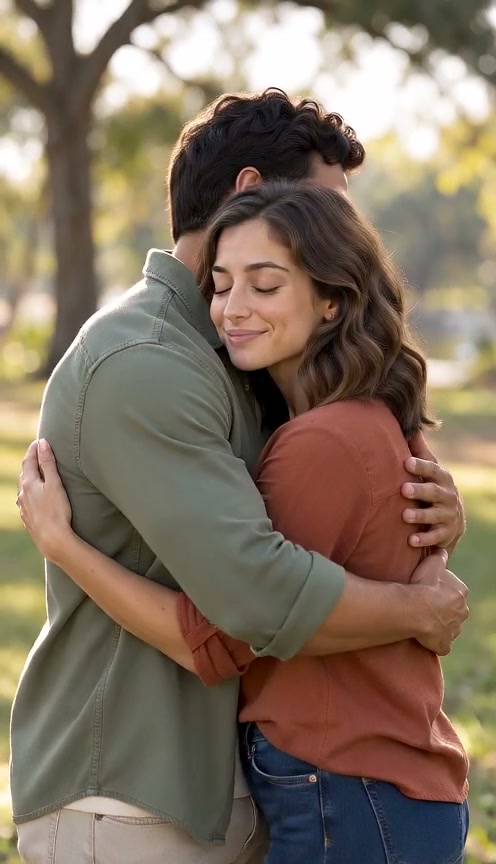
AI Hug Video: Bring Two Photos Together
Create a gentle AI hug video from two portraits or one photo together.
The short answer
An AI hug video imagines an embrace between subjects from still photos. A two photo hug starts with separate portraits, while a pair photo already shows both people together. A photo hug video needs a small turn, a step toward each other and a calm embrace. Choose your input setup, model, format and duration to create an AI hug video with natural ambient sound by default. Switch Audio off for a silent clip. Review both people in the completed clip before sharing.
Plan a two photo hug with recognizable faces
A two photo hug video brings separate portraits into one imagined scene. Choose photos with a similar camera angle and visible shoulders. A gentle hug animation should keep each face distinct as the people move closer. An AI hug video represents a created moment, rather than evidence that a real embrace took place.
For a two photo hug, avoid extreme differences in framing: one close-up and one distant figure make matching scale harder. A photo hug video can also start with one image of two people. Choose One Pair Photo when both subjects are already together.
Keep a gentle hug animation simple
A gentle hug animation works best as a small sequence: turn, approach and embrace. In a two photo hug video, hands and shoulders can overlap, so a steady camera and simple movement make mistakes easier to spot. Inspect the embrace before sharing the result.
This AI hug video creator supports two portraits or a pair photo. For a photo hug video involving a loved one, describe the intended moment respectfully and use images you have permission to animate. Results from a video tool can vary in identity and body detail.
Choose portraits that can share an embrace
For a two photo hug, look for portraits with a similar view of the face: two front-facing images are easier to describe consistently than one profile and one distant figure. Keep the shoulders visible and avoid hands already covering a face. A pair photo may provide useful information about relative height and position, although it can still contain obstacles such as furniture between the subjects. A photo hug video should focus on the intended two people; a crowded family picture can make that choice less clear.
A gentle hug animation can express affection in a birthday message, a reunion concept or a private family keepsake. Choose a tone that fits the people and the occasion. The AI hug video creator lets you use the Hug scene without claiming that the depicted moment actually happened. When using a photo of someone else, make sure you have permission to use it. If the images show a loved one who has died, consider how an imagined scene may be received by the people you share it with.
Inspect both people throughout the hug
In a two photo hug video, check the approach as carefully as the final embrace. Pause when a hand passes a shoulder or an arm moves behind the other person. Look for extra fingers, a missing forearm, an abrupt change in height or one face blending into the other. A gentle hug animation should leave both identities understandable even when their bodies overlap. A calm ending does not make earlier visual errors disappear, so review the entire clip rather than only its thumbnail.
The Hug preset describes a photo hug video with a steady camera and restrained motion. It cannot guarantee the anatomy or resemblance of the generated result. If the embrace becomes visually confusing, a shorter or simpler motion description may be easier to review. Check your selected photo mode before submitting: two separate portraits and one pair photo are different inputs. The AI hug video creator saves the completed clip in History for preview and download. A technical generation failure returns the held video credits; visual imperfections alone do not trigger an automatic refund. No automatic paid retry is submitted.
How to plan your video
- Select two portraits for a two photo hug video, or a clear pair photo for a photo hug video of people already pictured together.
- Open the AI hug video creator and select Hug. Choose the matching photo mode, model, format and duration for a gentle hug animation. Review the live credit quote before creating your video.
- Review the two photo hug inputs, then create the video. Find the completed photo hug video in History and check faces and arms throughout the embrace. A two photo hug is an imagined scene; label it accordingly when context matters.
Use photos and music you have permission to use. Provider input requirements and output quality vary.
Frequently asked questions
What is a two photo hug video?
A two photo hug video uses separate portraits to imagine two people embracing. A photo hug video made from a pair photo instead starts with both people in the same image. Tool support for these inputs varies.
Can an AI hug video use a pair photo?
Yes. Select One Pair Photo in the AI hug video creator. Choose a clear image with both faces visible. The Hug scene uses both people in that photo and preserves their left and right relationship.
Why can a gentle hug animation have extra arms?
During an embrace, overlapping hands and bodies can confuse a video model. Keep a gentle hug animation brief and inspect each person. An AI hug video may still have visual errors even with a clear prompt.
Can I generate an AI hug video here today?
Yes. The Hug scene accepts two portraits or one pair photo. Choose a Seedance model, resolution, format and duration, then review the credit quote. Your AI hug video appears in History when processing finishes, even if you close the page.
Related scenes
Start with the two people you want to bring together
Choose two portraits or one photo together for a gentle AI hug video.